Help
How to use Lighthouse Compare
This guide shows how to export Lighthouse reports as JSON and compare before vs after runs in this app.
1) Generate a Lighthouse report
- Open your page in Chrome.
- Open DevTools (`F12` or `Cmd/Ctrl + Shift + I`).
- Go to the Lighthouse tab.
- Select the device type you want to test (`Desktop` or `Mobile`).
- Run the audit and wait for the report to finish.
2) Save the report as JSON
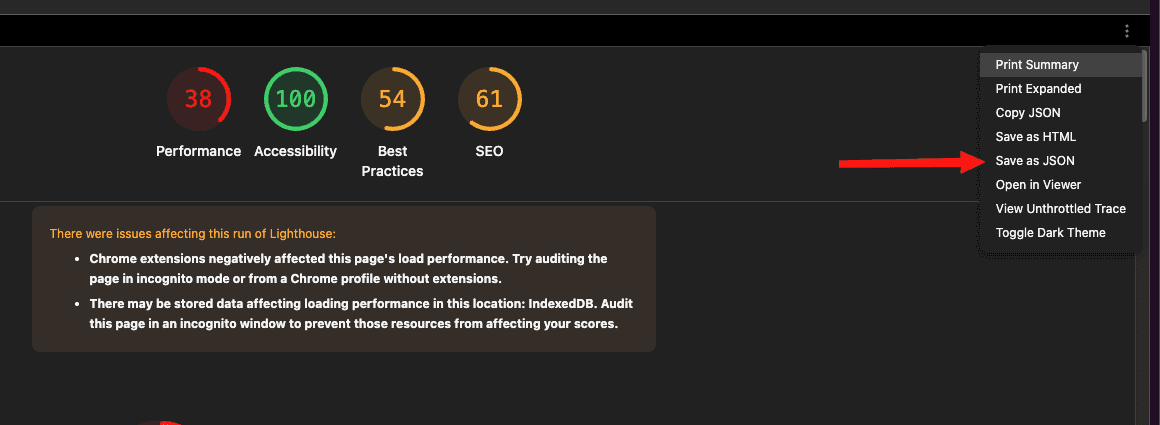
In the report screen, open the 3-dot menu at the top-right and clickSave as JSON (same action shown in your screenshot).
Recommended naming
- `before-desktop-run-01.json`
- `before-mobile-run-01.json`
- `after-desktop-run-01.json`
- `after-mobile-run-01.json`
Tips
- Run each scenario multiple times for stable averages.
- Use the same URL and test conditions when possible.
- Prefer Incognito to reduce extension noise.
3) Upload and compare
- Upload one complete pair to compare only one device: `Before Desktop + After Desktop` or `Before Mobile + After Mobile`.
- You can also upload both devices together to compare Desktop and Mobile in the same run.
- Drop JSON files directly or drop/select a folder to import JSON files automatically.
- Click Compare results.